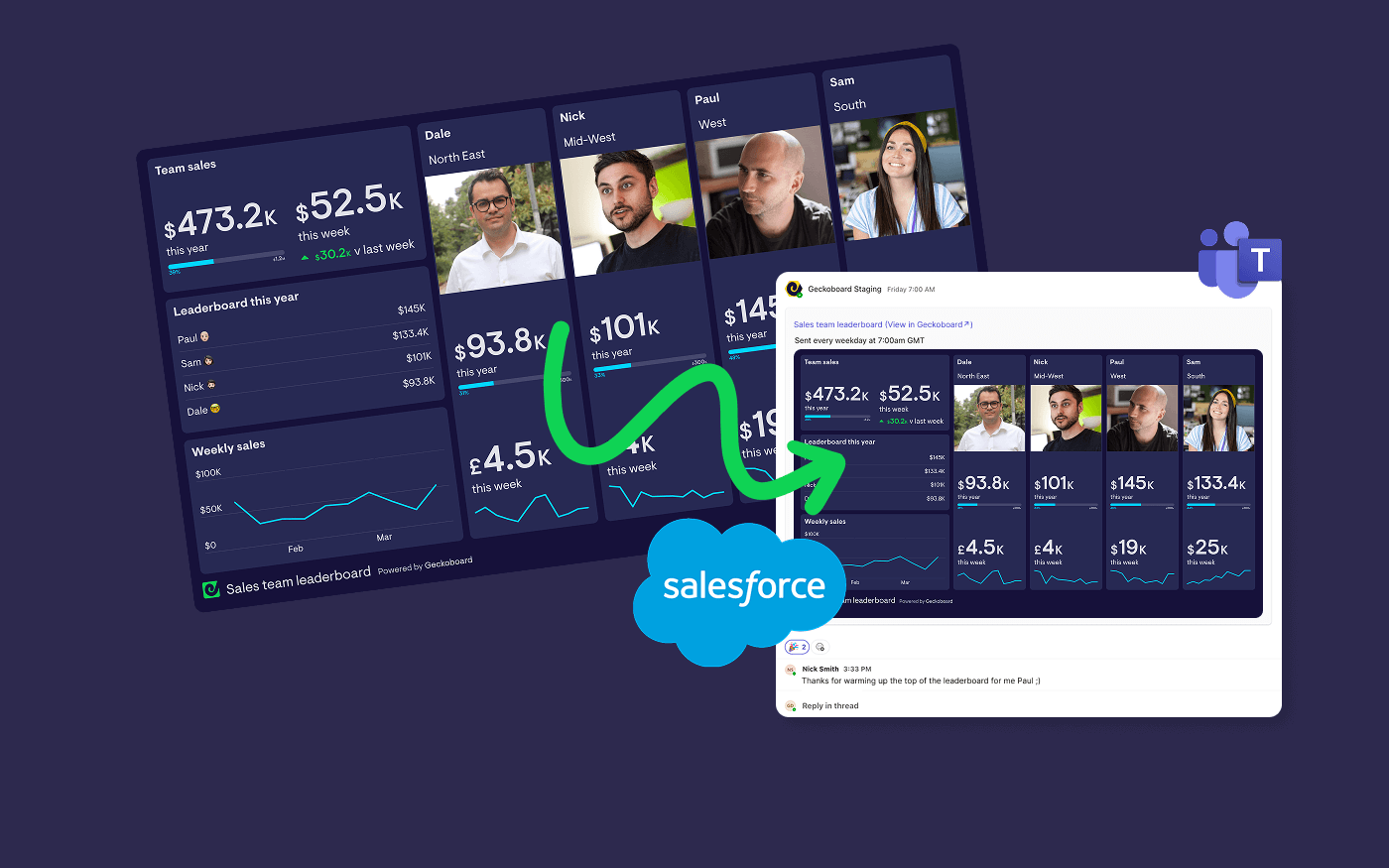
Salesforce reports don’t fail because they’re wrong. They fail because they’re late.
If your team coordinates in Microsoft Teams, but your metrics live in Salesforce, someone ends up having to do the same manual loop: refresh → export → screenshot → paste → explain. And once that loop gets even slightly inconsistent, people stop trusting and paying attention to the numbers.
So here’s how to automate it: build a Salesforce-powered dashboard in Geckoboard (kept in sync with your Salesforce reports), then schedule Snapshots to post it into Microsoft Teams automatically - on the cadence your team actually uses.
In this guide, we’ll show you how to:
- use your existing Salesforce reports as the source of truth
- turn them into a live dashboard your team can scan in seconds
- post that dashboard to a Teams channel automatically with scheduled Snapshots
Let’s get into it.
Step 1: Sign up to Geckoboard and connect Salesforce
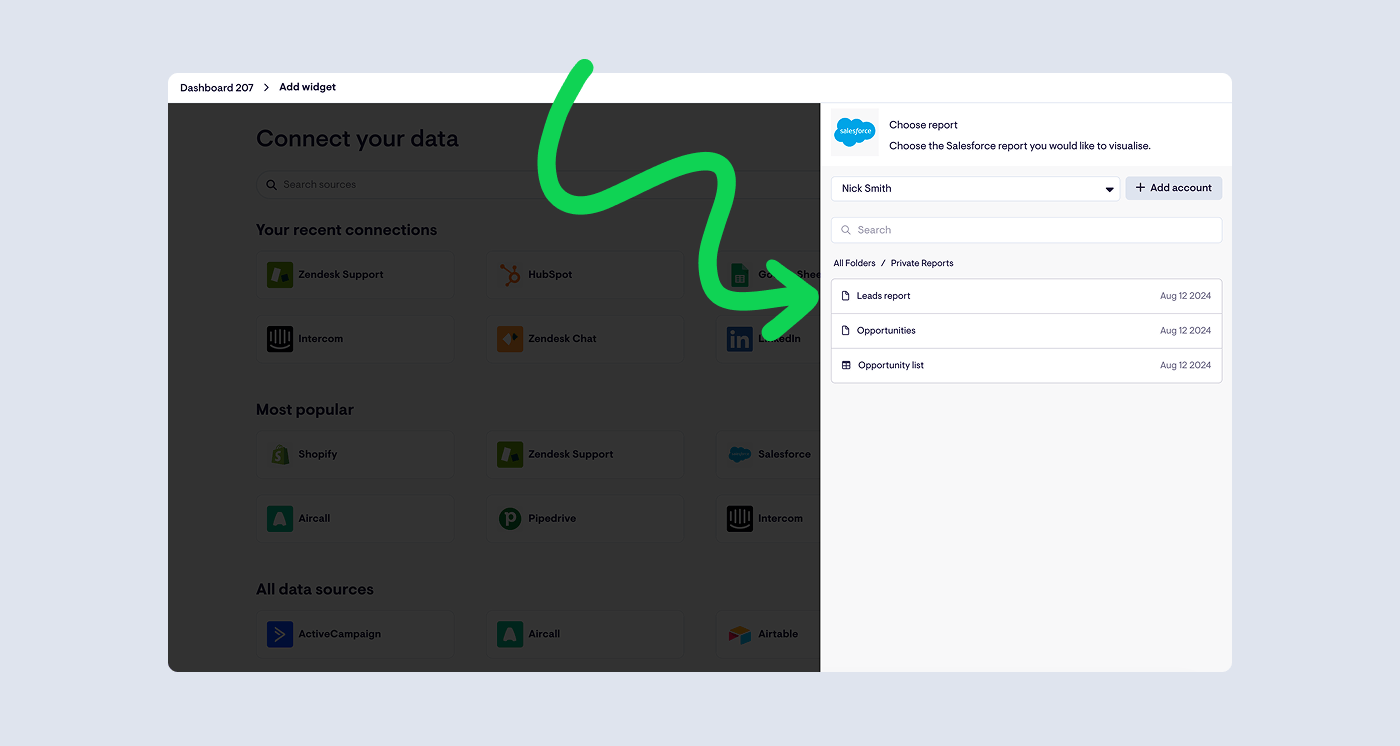
First, connect your Salesforce account to Geckoboard (you can do this as soon as you start a free trial). This gives you a live connection to your existing Salesforce reports, ready for you to turn them into a dashboard that stays in sync as records change - without rebuilding your reporting logic in yet another tool.
Helpful references:
Step 2: Create a widget and add it to your dashboard
Choose a Salesforce report, pick the widget type you want, and add it to a dashboard.
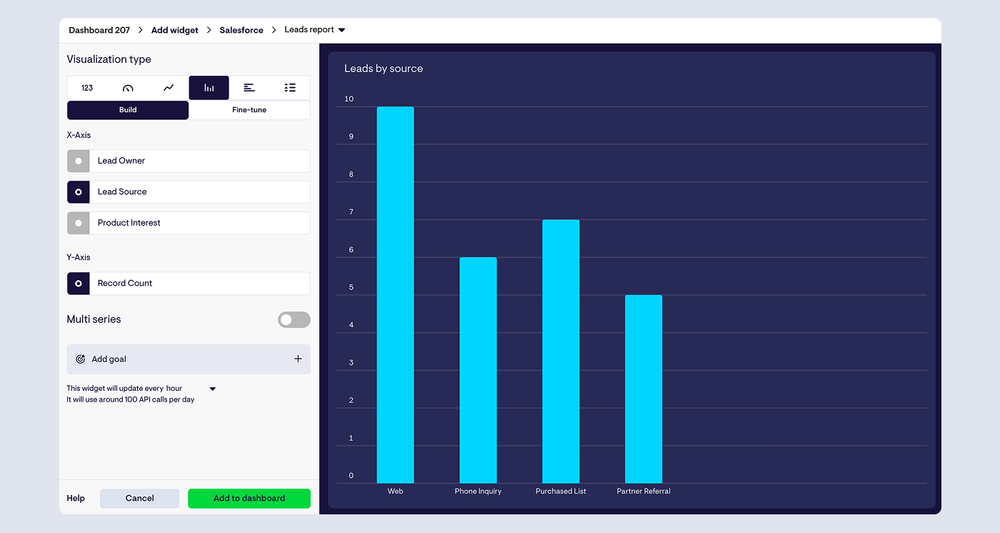
If this dashboard is going to land in a Teams channel, aim for the kind of metric that people can understand easily, and that’s likely to prompt action if it’s out of range.
Common first widgets for Salesforce dashboards are things like pipeline value, number of deals created/closed, activity volume, or deals aging in key stages.
Step 3: Continue adding widgets to build up your dashboard
Keep building until the dashboard answers one clear question for one audience.
This is where most “reports in Teams” setups go wrong: people try to squeeze the entire world into a single post. Teams channels don’t need everything - they just need a consistent, accurate pulse.
If you need a quick walkthrough for building a Salesforce report that works well for dashboarding in Lightning, follow this guide.
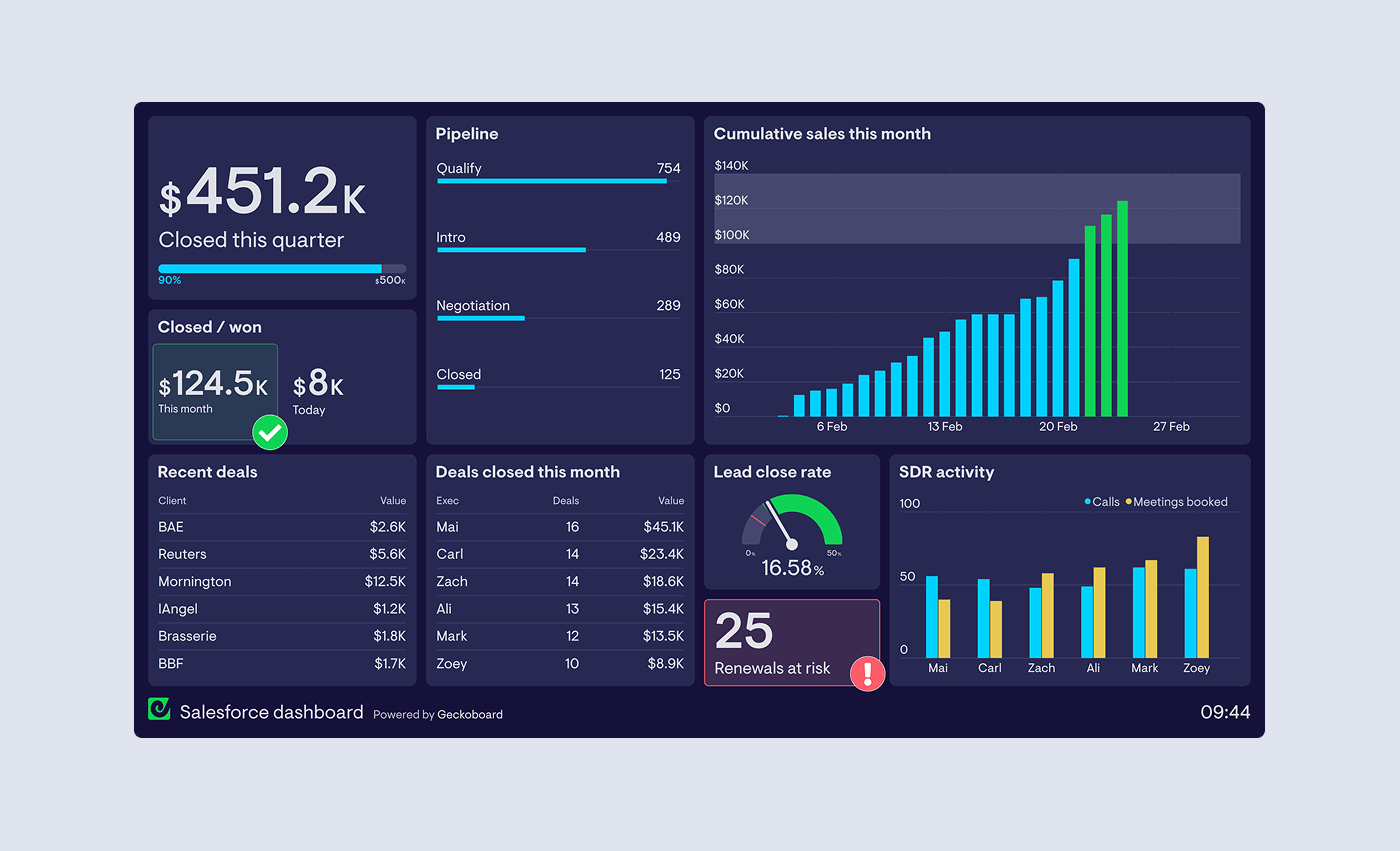
For a quick overview of how to build up a Salesforce-powered dashboard with Geckoboard, watch this quick video:
Step 4: Connect Microsoft Teams and schedule Snapshots
Once your dashboard is ready, you can post it into Microsoft Teams automatically by scheduling Snapshots.
Snapshots send a screenshot of your dashboard on a schedule you choose (daily, multiple times a day, weekly, monthly, etc.), straight into a Microsoft Teams channel. It’s designed for standups, wrap-ups, and keeping the wider org in the loop - without turning a channel into noise.
From your dashboard, click the ‘Schedule’ button at the top, Teams, and then adjust the settings to match what you need.
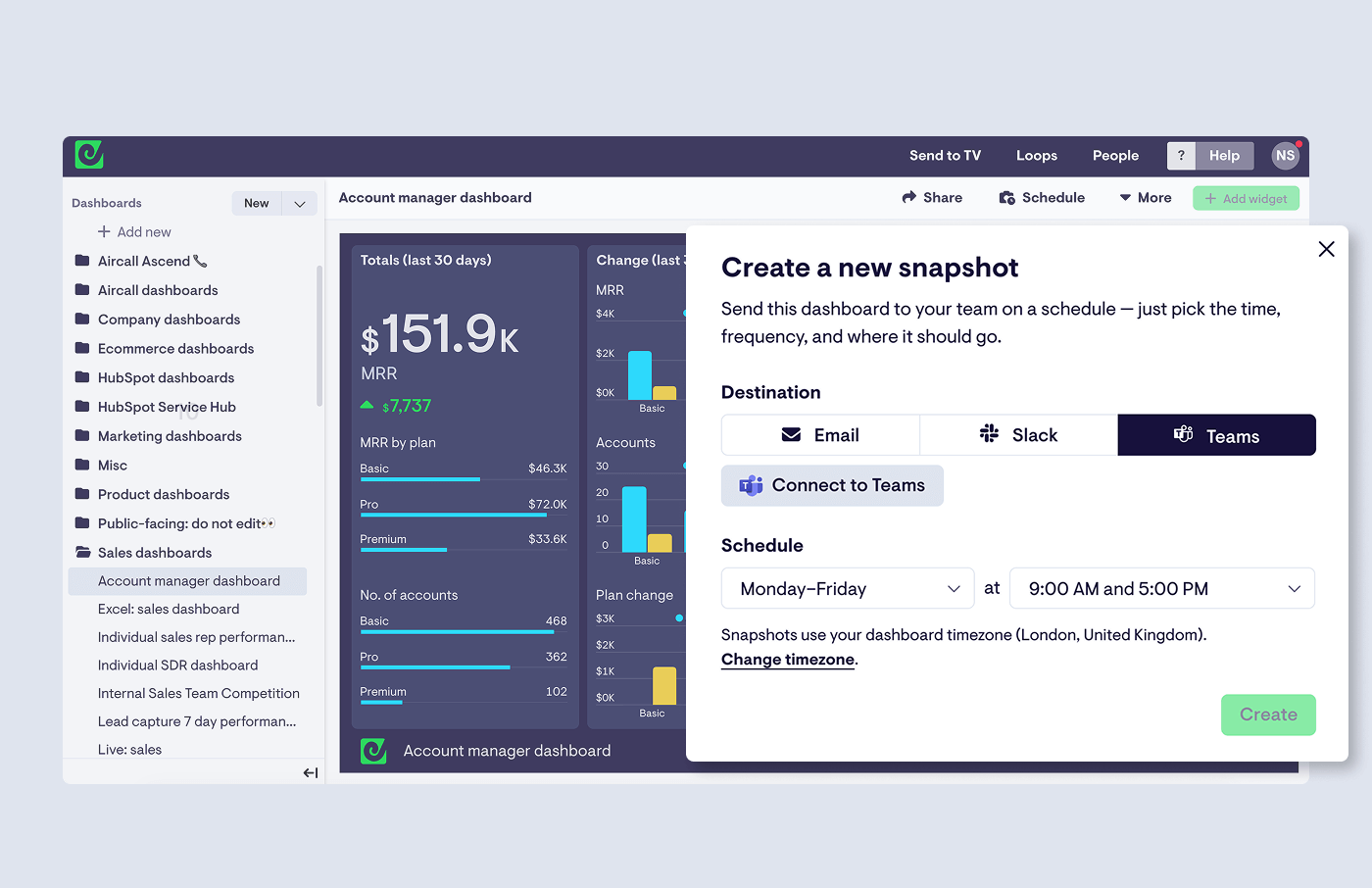
You can read more about Snapshots here.
One practical constraint worth knowing up front: private channels and group chats aren’t currently supported for Teams posting, so you’ll want to pick a standard channel.
Step 5: Make it part of the team’s rhythm (and tighten the feedback loop)
This is the part most teams underestimate.
The win isn’t “we connected Salesforce to Teams”. The win is the loop: someone takes action, the numbers move, and the team can see it quickly enough that behaviour actually changes. When that loop is slow (weekly spreadsheets, end-of-month reviews), it turns into theatre. When it’s fast and visible, it becomes a system.
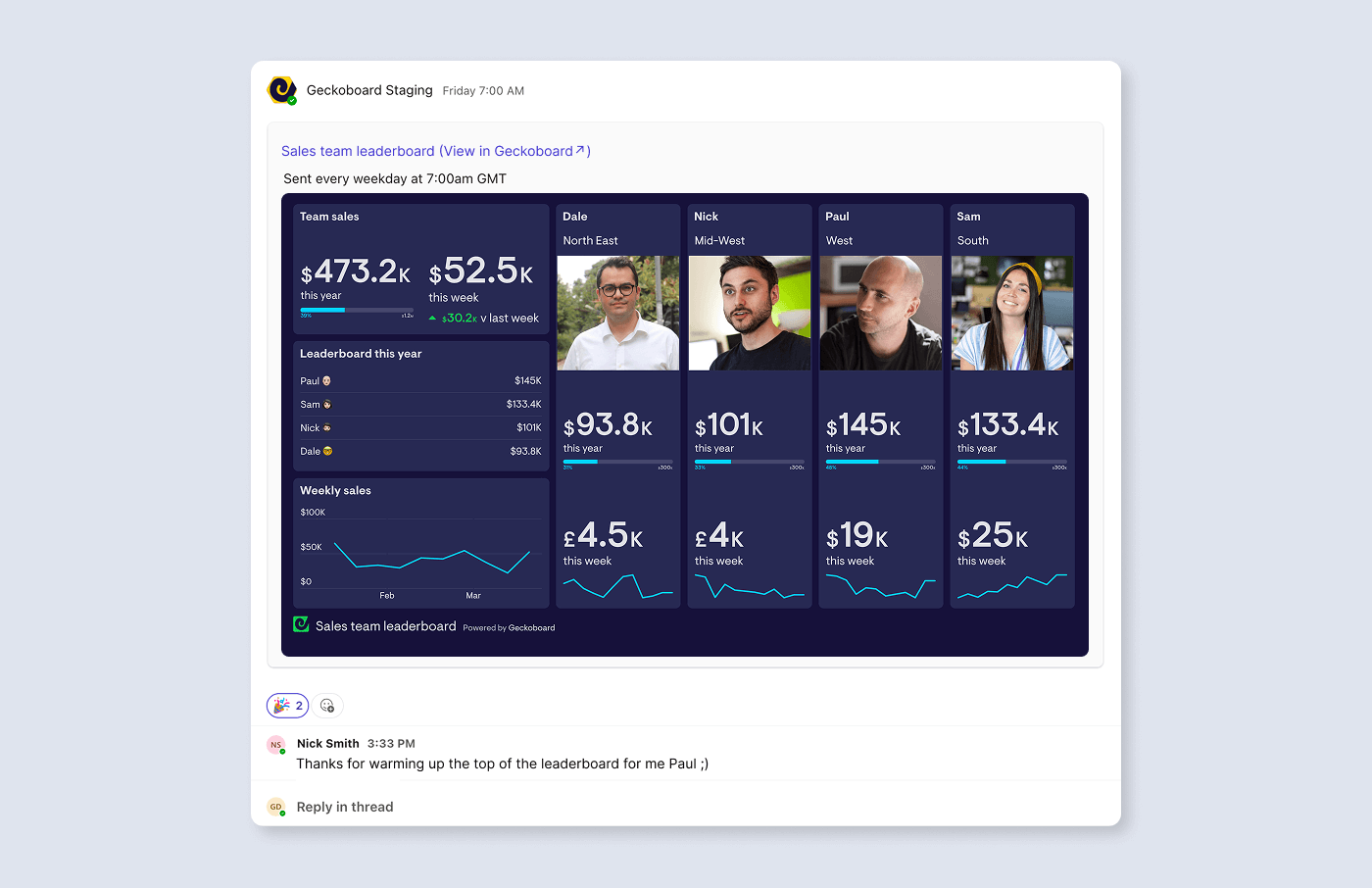
A few habits make this work well:
Pick a cadence that matches decisions. Daily can work for execution (pipeline added today, stage movement, activity). Weekly is often better for leadership review. The simplest test: how quickly can someone change behaviour and see the impact?
Keep the snapshot stable so it’s scannable. If the layout changes constantly, people never build the “two-second scan” habit - and the update becomes something they scroll past.
Make targets explicit (without making it weird). You don’t need gimmicks. A simple “today vs target” or a small leaderboard based on real Salesforce KPIs is often enough to create motivation - as long as it’s tied to outcomes and hard to game.
Keep it fair, or it backfires. Don’t compare people doing different work. Segment by region, role, or team if needed. And treat visibility as a tool for learning and encouragement, not punishment - culture decides whether this helps or hurts.
Use the thread for context. Treat the snapshot as a prompt. The conversation underneath is where the team adds nuance (“why did this dip?” “what changed?”) and turns the numbers into decisions.
FAQ
Does Salesforce integrate with Microsoft Teams?
Yes - there are multiple ways to connect Salesforce and Teams depending on what you’re trying to achieve. If your goal is regular, team-level visibility, posting a small KPI dashboard into a channel on a schedule is often the most readable and reliable format.
Can I send Salesforce reports to a Teams channel automatically?
Yes. A practical approach is to use your Salesforce reports to build a dashboard view, then schedule Snapshots to post that dashboard into Teams automatically.
How do I send dashboards automatically to Microsoft Teams?
In Geckoboard, you schedule a Snapshot as an admin, authorise your Microsoft Teams account, choose the channel, and set the schedule (daily/weekly/monthly).
Can I post to private Teams channels?
Private channels (and group chats) aren’t currently supported for scheduled Snapshot posting, so choose a standard channel for the update.
Should I send the full report, or a dashboard snapshot?
For Teams, dashboard snapshots usually win. Teams works best when updates are scannable and discussion-ready - a quick pulse of the metrics that matter - rather than a dense table dump.

