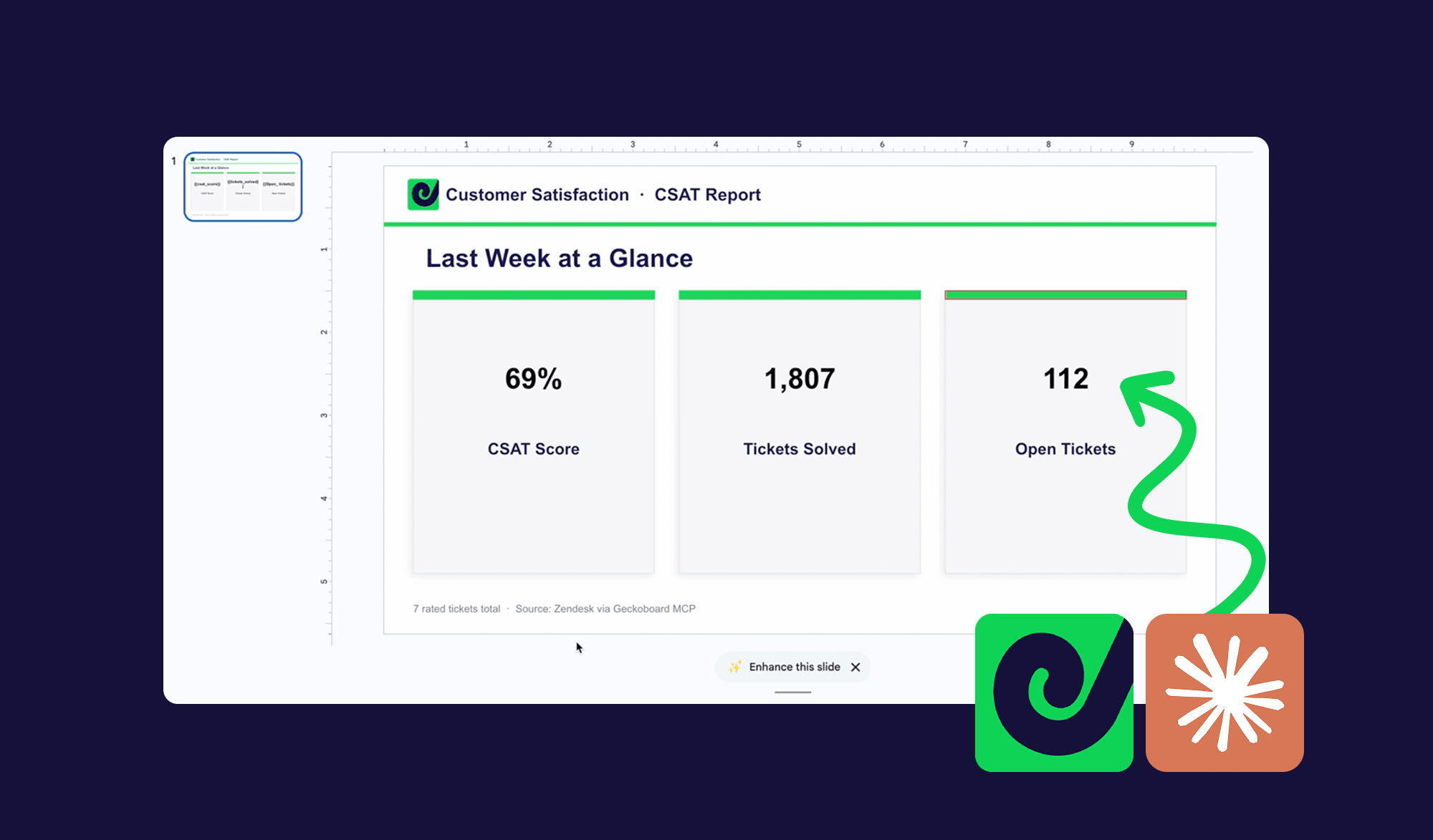
Picture this: it's Monday morning, town hall is at 2 pm, and someone has sent the usual calendar reminder: "Don't forget to update the weekly support deck!"
You open the slide, look at last week's numbers still sitting there, and start the ritual. Open Zendesk. Find the right report. Check the date filter. Copy the number. Switch to Slides. Find the right text box. Paste. Repeat fifteen times. Silently wish you were somewhere else.
You tried delegating it to an intern once. The data came back with the wrong date range. You've considered writing a script, but the APIs change, and you don't have time to maintain it. So every week, you do it yourself, because the numbers need to be right.
"The data needs to be accurate. You can't half-pay attention to this. So you do it yourself. Every single week."
There's a fix, and it involves an MCP server — the same Model Context Protocol technology that lets AI assistants connect to live data. Geckoboard's MCP exposes your live support metrics directly to Claude. The gws-slides skill from mcpservers.org lets Claude read and write to your existing Google Slides presentation via the Google Workspace CLI. Put them together, write the prompt once, and Claude pulls fresh numbers and updates your deck while you're making coffee.
Let's walk through exactly how to set this up.
What you'll need
Three things, all of which you can set up in under 45 minutes:
1. Geckoboard connected to your support tool. Geckoboard integrates with Zendesk, HubSpot, Intercom, Aircall, Salesforce, and more. Once connected, it exposes your metrics via its MCP server, so Claude can query them directly — with the right filters and time windows, without you writing a single line of code. Geckoboard's MCP server implements the Model Context Protocol, an open standard that lets AI tools like Claude query live data sources directly. Once connected, Claude can pull your latest support metrics without any manual export or copy-paste.
2. The gws-slides skill from github.com/googleworkspace/cli. This gives Claude access to the Google Slides API via the gws CLI, a community-built open-source Google Workspace command-line tool. Claude uses it to read your presentation's structure and write changes back with a batchUpdate call. Your branding, layout, and fonts stay exactly as they are.
3. Your existing slide deck. You don't need to start from scratch. Claude reads the structure of your current presentation and updates it in place.
Before you begin, grab your presentation ID. It's the string in your Google Slides URL between /d/ and /edit:
https://docs.google.com/presentation/d/1BxiMVs0XRA5nFMdKvBdBZjgmUUqptlbs74OgVE2upms/edit
                                        ^^^^^^^^^^^^^^^^^^^^^^^^^^^^^^^^^^^^^^^^^^^^^^^^^^^
                                        This is your presentation ID
You'll need it in steps 3 and 5.
The setup
Step 1: Connect Geckoboard to your support tool
Log in to Geckoboard and add your support integration under Connections. Once connected, Geckoboard starts pulling your live metrics: tickets solved, first reply time, CSAT, backlog, and more.
Connecting Geckoboard's MCP to Claude takes just a few minutes. This article walks you through it: support.geckoboard.com/en/articles/15331363-getting-started-with-the-geckoboard-mcp
Step 2: Install the gws CLI and the slides skill
The gws-slides skill is part of the Google Workspace CLI, an open-source tool that wraps the entire Google Workspace API surface into a single command-line interface. You install it once, authenticate once, and then Claude can drive it.
Install the CLI:
npm install -g @googleworkspace/cli
Or download a pre-built binary from the GitHub releases page if you'd prefer not to use npm.
Install the slides skill into Claude Code:
npx skills add https://github.com/googleworkspace/cli --skill gws-slides
This pulls the gws-slides skill (and the required gws-shared skill it depends on) into Claude's context, so Claude knows the exact commands and flags to use.
Step 3: Authenticate — the part that trips people up
This is where most people get stuck. The gws CLI needs a Google Cloud OAuth application to authorise against. It does not ship with credentials pre-configured; you have to create them yourself. Here's the exact process.
Set up your Google Cloud project and OAuth credentials:
This takes about ten minutes.
- Go to console.cloud.google.com and create a new project (or use an existing one).
- In the left menu, go to APIs and Services > Library and search for "Google Slides API." Enable it.
- Go to APIs and Services > OAuth consent screen.
- Choose External as the user type.
- Enter the app name and your email address as the developer contact. Everything else is optional.
- Under Test users, click Add users and enter your own Google account email. This is critical. Without this step, you'll get an "Access blocked" error when you try to log in, and the error message gives no indication why.
- Go to APIs and Services > Credentials.
- Click Create credentials > OAuth client ID.
- Choose Desktop app as the application type. This matters; choosing "Web application" will cause a redirect_uri_mismatch error later.
- Click Download JSON.
- The file is downloaded to your Downloads folder with a long, auto-generated name. Move and rename it:
mkdir -p ~/.config/gws && mv ~/Downloads/client_secret_*.apps.googleusercontent.com.json ~/.config/gws/client_secret.json
- Run:
gws auth login --scopes https://www.googleapis.com/auth/presentations
Note: --scopes slides looks like it should work, but throws an invalid_scope error. Use the full scope URL above.
A browser window will open. If Google shows a warning that says "Google hasn't verified this app," click Advanced and then Go to [your app name] (unsafe). This is expected for apps in testing mode and is safe for personal use.
Once completed, your credentials are stored encrypted in ~/.config/gws/ and gws will use them automatically for all future commands.
Verify it worked:
gws slides presentations get \
  --params '{"presentationId": "YOUR_PRESENTATION_ID"}'
Replace YOUR_PRESENTATION_ID with the ID you grabbed from your deck's URL in the "What you'll need" section. If you get back a JSON object describing your slide deck, you're authenticated and ready to go.
Headless or CI environments
If you're running this on a server or shared machine without a browser, authenticate on your laptop first, then export the credentials:
gws auth export --unmasked > credentials.json
Copy credentials.json to the server, then set the environment variable:
export GOOGLE_WORKSPACE_CLI_CREDENTIALS_FILE=/path/to/credentials.json
All subsequent gws commands on that machine will automatically use the exported credentials.
Step 4: Tag your slide placeholders (a one-time edit)
Open your deck and add placeholder text to each number or value you want Claude to update:
{{tickets_solved}}
{{median_first_reply_time}}
{{csat_score}}
{{open_tickets}}
{{reopened_tickets}}
Do this once. From then on, Claude knows exactly where to put each value. Your slide design stays the same; only the tagged values change.
Step 5: Write your prompt (once)
Save this as a slash command or text snippet for weekly reuse:
Using the Geckoboard MCP, pull the following support metrics for last week
(Monday to Sunday, Europe/London timezone) from our Zendesk connection:

- Total tickets solved
- Median first reply time
- CSAT score (% good)
- Total open tickets (current)
- Reopened tickets

Then open my Google Slides deck (ID: YOUR_PRESENTATION_ID) using the
gws-slides skill, find the placeholders below, and replace each one with
the correct value. Round durations to the nearest minute. Format CSAT as
a percentage.

Placeholders to replace:
{{tickets_solved}}           → total tickets solved
{{median_first_reply_time}}  → median first reply time
{{csat_score}}               → CSAT % good
{{open_tickets}}             → current open ticket count
{{reopened_tickets}}         → reopened tickets count

Once done, confirm which values were updated and flag anything that looked
unusual compared to last week.
Save this as /update-support-deck in Claude Code. Next Monday: one command, go make coffee, come back to a finished deck.
What it looks like in practice
Here's a real run of this workflow on a Geckoboard Zendesk connection.
Geckoboard returns the data:
Geckoboard MCP · Zendesk · Last 7 days:
  Tickets solved: 96
  Median first reply time: 42 minutes
  CSAT (good): 9 ratings — 82%
  Open tickets (current): 14
  Reopened tickets: 2
Claude reads the presentation structure:
gws slides presentations get \
  --params '{"presentationId": "1BxiMVs0XRA5nFMdKvBdBZjgmUUqptlbs74OgVE2upms"}'

# Claude identifies 5 placeholders across 3 slides:
#   Slide 2: {{tickets_solved}}, {{open_tickets}}
#   Slide 3: {{median_first_reply_time}}, {{csat_score}}
#   Slide 4: {{reopened_tickets}}
Claude writes the updates back:
gws slides presentations batchUpdate \
  --params '{"presentationId": "1BxiMVs0XRA5nFMdKvBdBZjgmUUqptlbs74OgVE2upms"}' \
  --json '{
    "requests": [
      { "replaceAllText": { "containsText": { "text": "{{tickets_solved}}" }, "replaceText": "96" } },
      { "replaceAllText": { "containsText": { "text": "{{median_first_reply_time}}" }, "replaceText": "42 min" } },
      { "replaceAllText": { "containsText": { "text": "{{csat_score}}" }, "replaceText": "82%" } },
      { "replaceAllText": { "containsText": { "text": "{{open_tickets}}" }, "replaceText": "14" } },
      { "replaceAllText": { "containsText": { "text": "{{reopened_tickets}}" }, "replaceText": "2" } }
    ]
  }'
Claude confirms and flags anything worth noting:
All 5 placeholders updated successfully across slides 2, 3, and 4.

One thing to flag: CSAT is based on 9 ratings, which is on the lower end.
Worth mentioning the sample size in your presentation if the 82% figure
comes up. Last week there were 14 ratings for comparison.

Your deck is ready.
Total time from running the command to a finished, accurate deck: about 90 seconds.
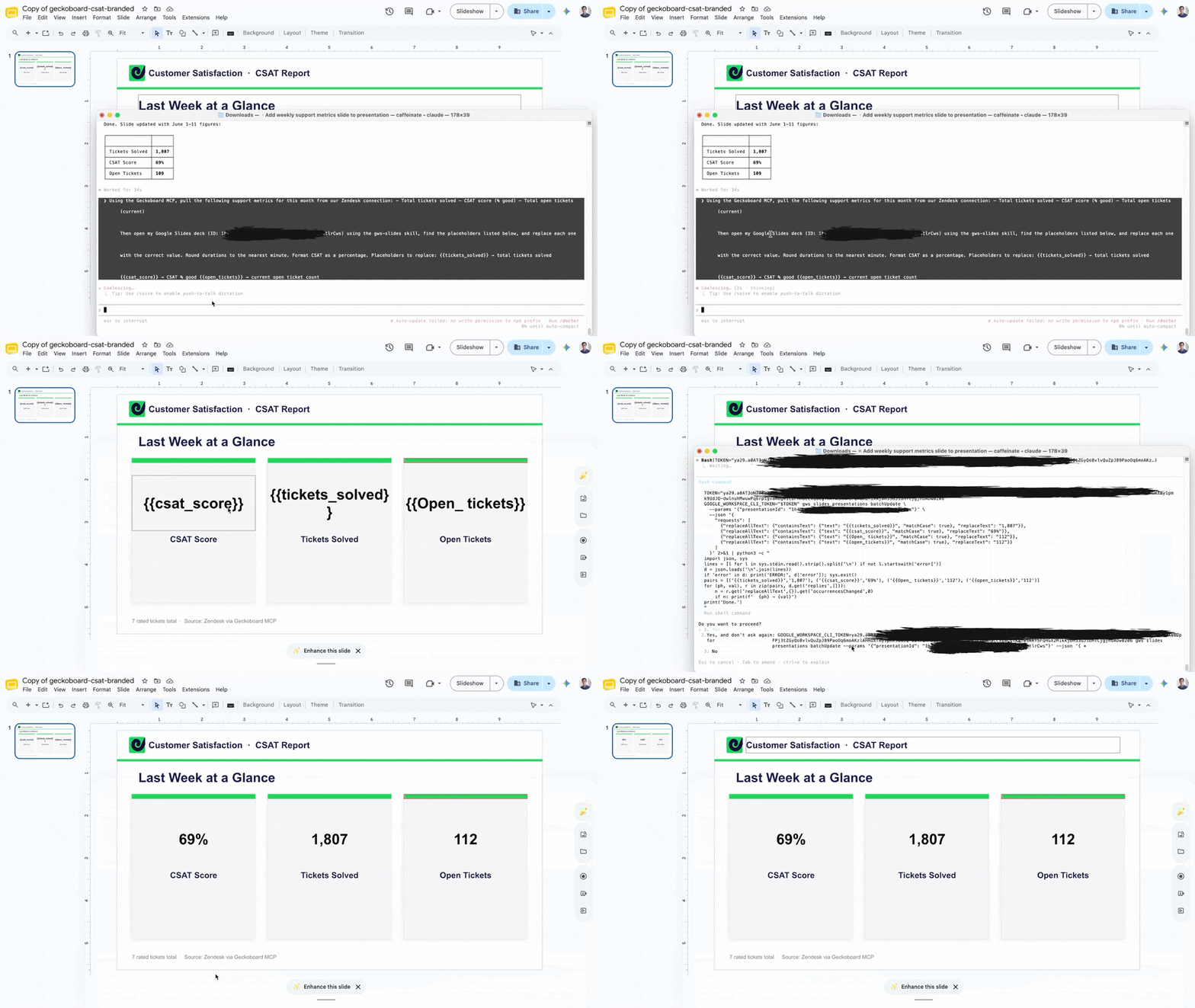
A few things worth knowing
Your design is untouched. The batchUpdate approach replaces only text values. Your fonts, colours, layouts, and images stay exactly as they are.
You can add a comparison column. Extend the prompt to ask Claude to also pull the previous week's numbers and calculate week-on-week change. Add {{tickets_solved_wow}} placeholders for the delta values, and Claude handles the arithmetic.
You can run it across multiple data sources. Geckoboard connects to Zendesk, Intercom, HubSpot, and more. If your town hall deck covers support and sales metrics, Claude can pull them all in a single run.
Claude flags anomalies. Because Claude sees the data before it writes it, you can ask it to compare against prior weeks and surface anything that looks off. It's not just about automating copy-paste; it's about giving you a sanity check on the numbers before you walk into the room.
Frequently asked questions
What is an MCP server?
MCP stands for Model Context Protocol — an open standard that lets AI tools like Claude connect to external data sources and services. An MCP server exposes data (like your Zendesk metrics) in a format Claude can query directly. Geckoboard runs an MCP server that gives Claude access to your live dashboard data.
Does this work with PowerPoint or Microsoft 365?
The workflow described here uses Google Slides via the gws CLI. A similar approach is possible with PowerPoint using Claude for Microsoft 365, though the setup differs. We'll cover that in a follow-up post.
Do I need to know how to code?
No. The setup involves running a few terminal commands, but you don't need to write any code. The hardest part is the Google Cloud OAuth setup, which is covered step-by-step in the authentication section above.
Which support tools does Geckoboard connect to?
Geckoboard integrates with Zendesk, Intercom, HubSpot, Aircall, Salesforce Service Cloud, and more. Any metrics available in your Geckoboard dashboard can be pulled via the MCP server.
Get started
The Geckoboard MCP is available to Geckoboard customers. Find the getting-started guide at support.geckoboard.com.
The gws-slides skill is available at mcpservers.org/agent-skills/googleworkspace/gws-slides, with the underlying CLI at github.com/googleworkspace/cli.
Set it up once. Run it every Monday morning. Walk into your town hall with accurate, current data and a free hour you didn't have before.

