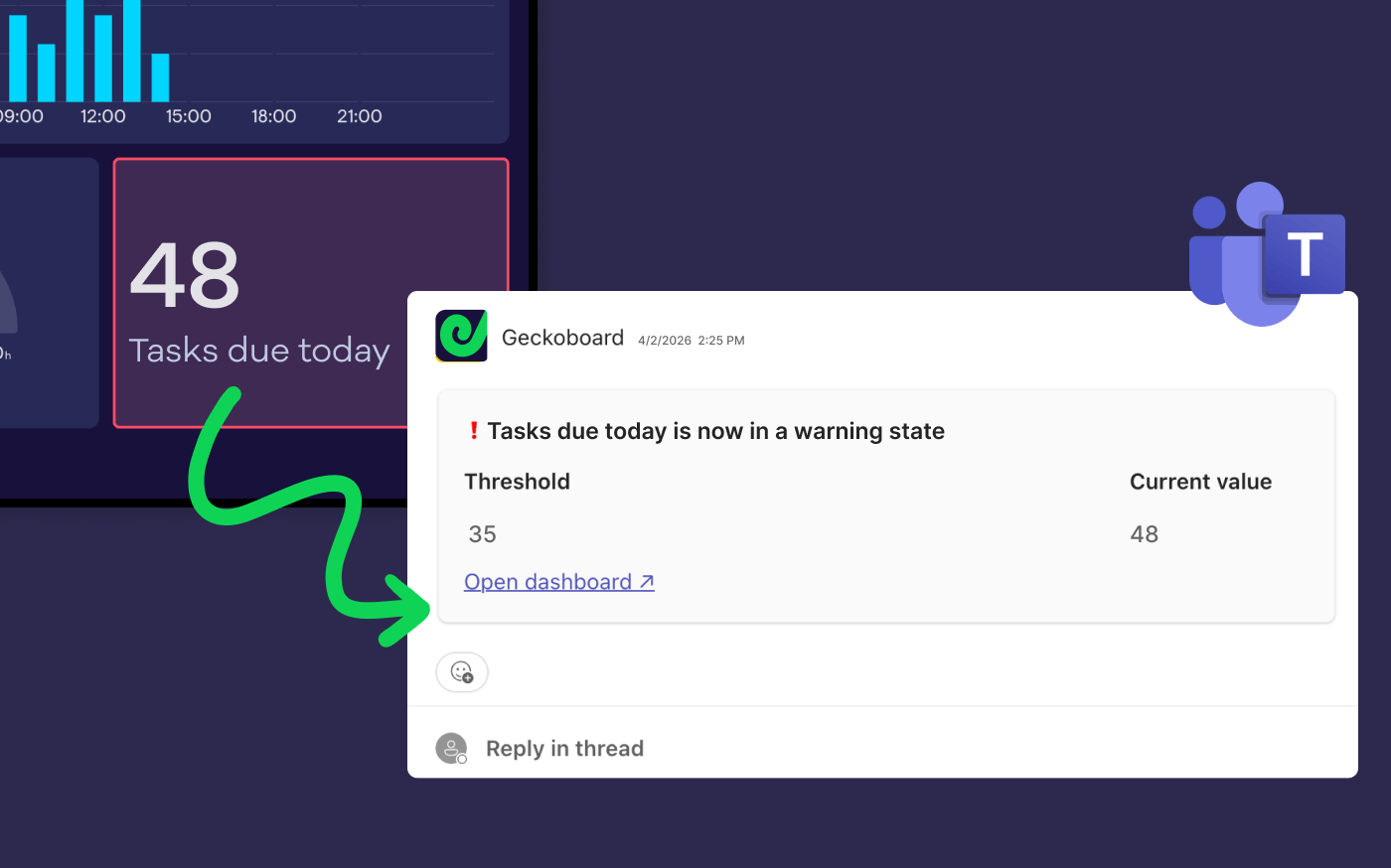
Microsoft Teams is where a lot of sales and revenue teams coordinate work. But if your HubSpot data is stuck inside HubSpot it’s easy to miss important signals like a pipeline stalling, deals aging, a sudden drop in team activity, or a new wave of support tickets.
In this guide, we’ll show you how to use a HubSpot Microsoft Teams integration plus Geckoboard to send notifications and alerts into Teams, so everyone can react fast, without turning your channels into noise.
Notifications can get messy fast
Most teams want two different things from a HubSpot Teams integration:
- Record-level notifications for individuals “@You were mentioned.” “A task is due.” “A deal was assigned.”
- Metric-based alerts for the team “Deals aging past 30 days spiked.” “Win rate dipped.” “Unassigned contacts increased.” “Tickets breached SLA (or time-to-first-response drifted up).”
It’s important to make the distinction, because without it, you get the worst of both worlds: lots of noise, and not enough clarity to make notifications genuinely useful.
What HubSpot can send to Microsoft Teams (and what it can’t)
HubSpot’s native Microsoft Teams integration is useful - particularly for individual notifications and record activity updates.
Here are a few things it supports:
- Receive HubSpot notifications in Microsoft Teams via the HubSpot bot (user-level notification preferences).
- Associate a deal or company with a Teams channel, then sync activity alerts (notes, calls, emails, tasks, meetings) into that channel.
- Send Microsoft Teams notifications from HubSpot workflows (Professional/Enterprise), including the ability to post to a Teams channel (with some constraints, like not sending to private channels).
That covers a lot of important “what just happened?” updates.
But it’s still harder to answer team-level operational questions like:
- Are deals quietly getting stuck in a specific stage?
- Is pipeline coverage drifting below target?
- Are we falling behind on sales activity this week?
- Are unassigned leads building up?
- Is time to first response on HubSpot tickets drifting up?
That’s where KPI-based alerting tends to fit better.
A simple way to set up Teams alerts for HubSpot
Most teams get the best results when they treat Teams alerts as operational signals, rather than a running commentary on every record change.
Keeping track of these signals is simple:
- Put a small set of mission-critical HubSpot KPIs on a dashboard the team can share
- Define warning/success thresholds on those KPIs that
- Trigger alerts into relevant Teams channels when those thresholds are hit
Geckoboard (the dashboard software we’ve built) makes the whole process of defining KPIs, monitoring them in real-time, and getting notified when needed incredibly easy.
How to set up HubSpot alerts in Microsoft Teams
1) Connect HubSpot to Geckoboard
Connect your HubSpot account to Geckoboard [grab a free 14-day trial here] and build a dashboard with the HubSpot data you want to monitor during the day.
Geckoboard’s HubSpot integration focuses on sales and ticket data, including deals, pipeline value, win/loss rate, activities, contacts, and tickets (with filters by pipeline, owner, stage, lifecycle stage, etc.). If there’s data in HubSpot you need to regularly monitor, then generally Geckoboard will support it (or we’ll try to add it to our integration for you!).
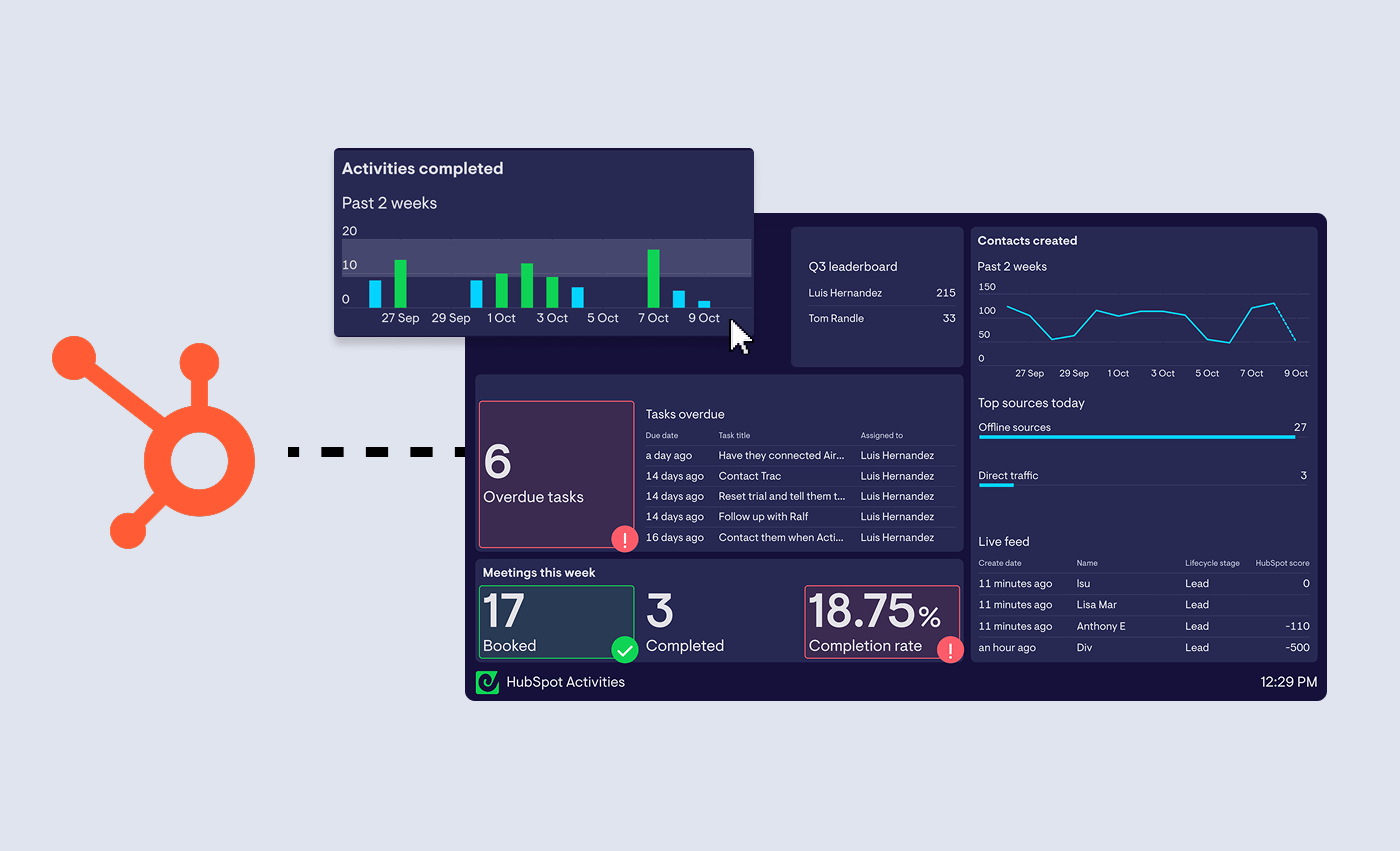
💡 Tip: If you’re not sure what sort of HubSpot data to include on a real-time operational dashboard, a good place to start is by building a simple “Revenue & pipeline health” dashboard first containing metrics like:
- pipeline value vs target
- aging deals
- deals created / closed
- win rate
- activities completed
- unassigned contacts/leads
We’ve got a whole library of dashboard examples too for more inspiration.
2) Add KPI notifications and connect Microsoft Teams
Geckoboard’s KPI notifications are driven by status indicators on a widget. You set thresholds (for example: warning if deals forecast to close this month drops below target), and Geckoboard sends an alert when the KPI enters or exits that state.
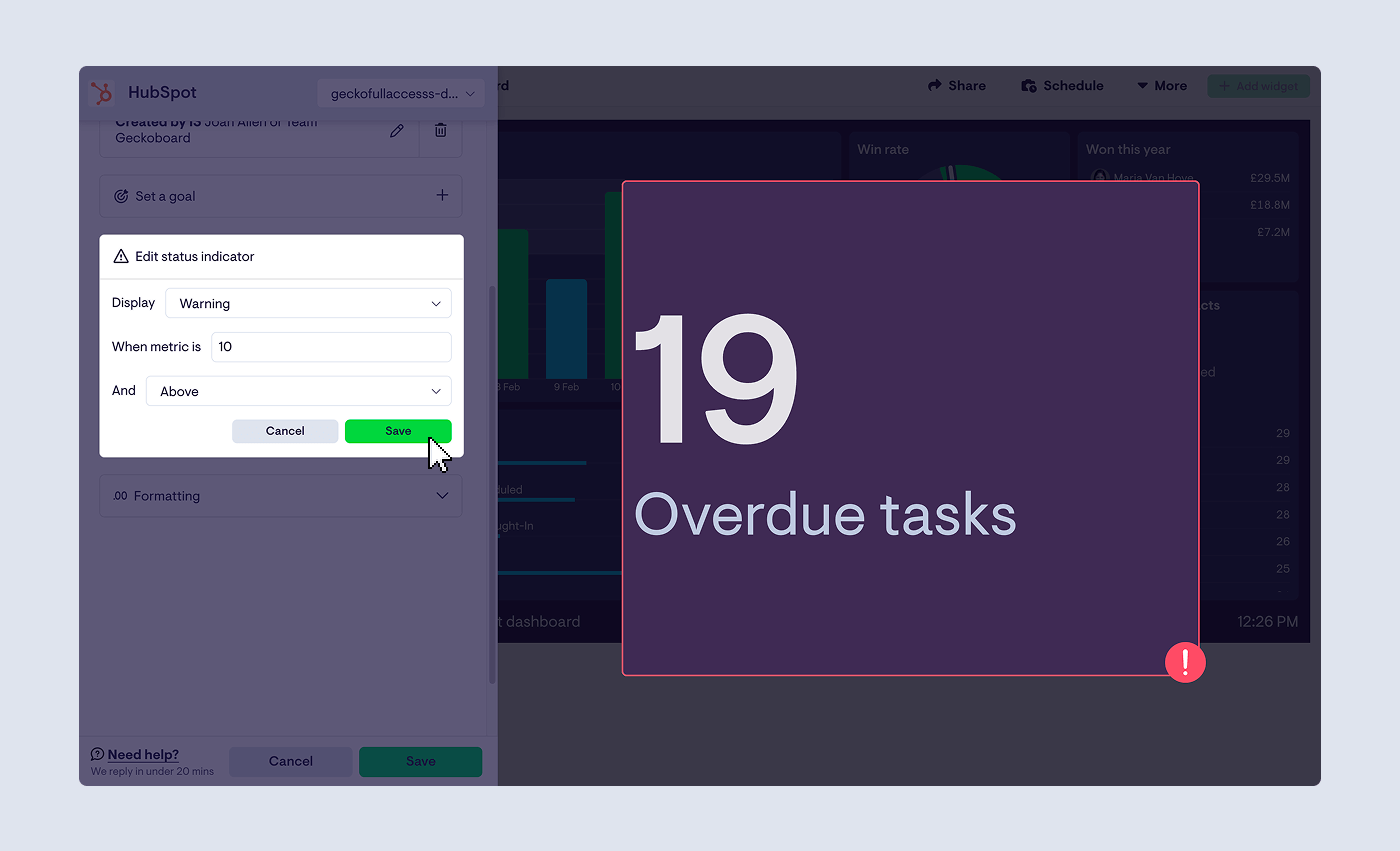
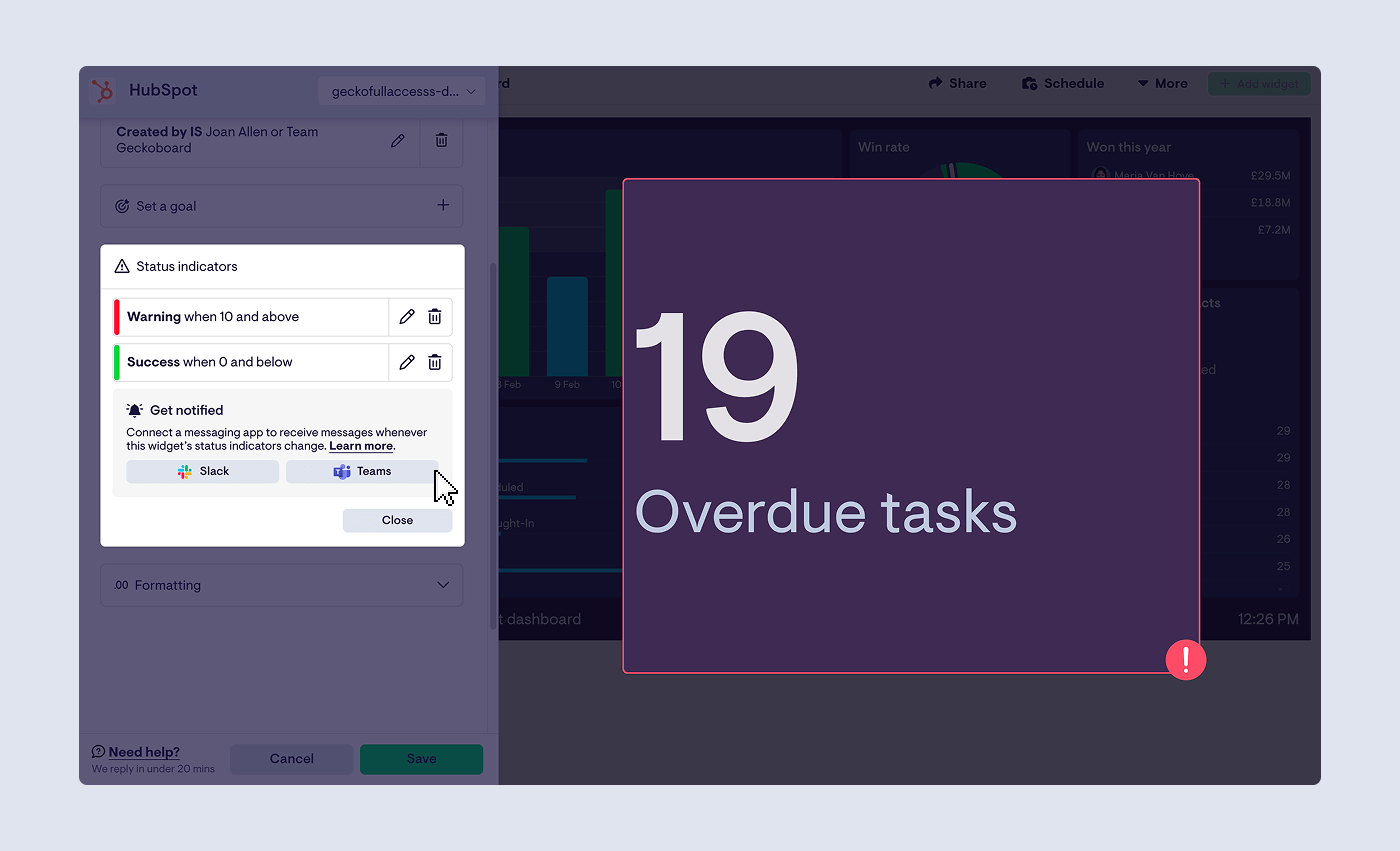
Notifications are supported on number and gauge widgets. Once you’ve set the thresholds, connect Microsoft Teams with Geckoboard’s Teams integration, and the channel where you want the alert to land.
3) Wait for your notification to trigger
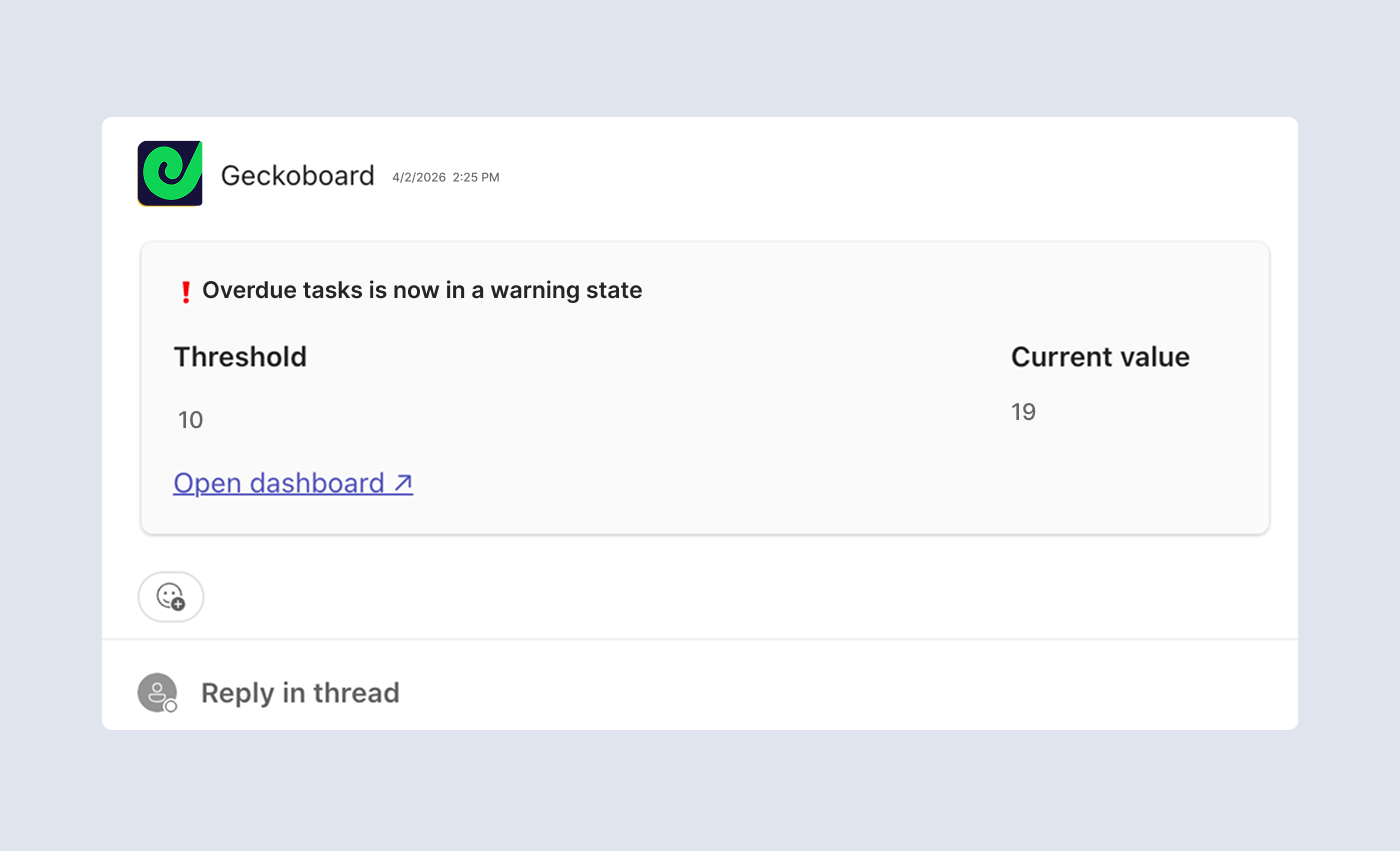
Once your notification is set up, the moment your HubSpot metric crosses the threshold you’ve defined, an alert posts to the Teams channel.
Notifications include the metric name, state (warning/success), whether it entered/exited that state, the threshold crossed, the current value, and a link back to the dashboard.
Which HubSpot metrics are worth alerting on
A useful alert is one where the next step is obvious.
For example:
- Unassigned contacts > 20: you can then assign owners / check routing / pause campaigns if needed
- Deals in “Proposal sent” aging > 30 days > 10: run a deal review / update next steps / close-lost stale deals
- Meetings booked this week < target → run focused booking push, review sequences, adjust lead lists
As a general rule, if a metric doesn’t have a clear action associated with it that you or the team can take, it’s usually better kept on a dashboard for regular review, rather than firing a notification.
Below are some more examples of metrics that tend to translate cleanly into action. If you’re adding these to your own dashboard, start small, tune thresholds over time, and don’t forget to review and delete alerts that aren’t earning their keep.
Pipeline health alerts
What it tells you: Pipeline coverage or momentum is drifting.
Good metrics to alert on:
- Value of open deals
- Deals forecast to close (count/value)
- Deals created / deals closed
- Win rate / loss rate
Example thresholds:
- Forecast-to-close value < target (for the month/quarter)
- Open pipeline value < 3× target (adjust to your sales cycle)
- Win rate drops below baseline
Typical next steps: tighten stage hygiene, review stuck stages, run a pipeline clean-up, focus on highest-likelihood deals.
Deal aging / deal hygiene alerts
What it tells you: Deals are stalling (or the pipeline is getting messy).
Good metrics to alert on:
- Open deals
- Time to close
- Deals by stage (use filters/breakdowns by pipeline/stage)
Example thresholds:
- Deals in key stage > X days exceeds N
- Deals with next activity date missing > N (if tracked via a property/filter)
- Deals closed-lost this week spike above baseline
Typical next steps: assign owners, schedule next steps, update close dates, close-lost dead deals, fix stage definitions.
Activity / effort alerts
What it tells you: Outreach and follow-up activity isn’t keeping pace.
Good metrics to alert on:
- Activities created / completed
- Meetings, calls, tasks (activity breakdowns)
Example thresholds:
- Activities completed today < X → run a focused follow-up block / clear overdue tasks
- Tasks due today > X → prioritize the due-today queue / redistribute load
Typical next steps: adjust daily priorities, reallocate accounts, unblock reps, tighten lead assignment/routing.
Lead routing / ownership alerts
What it tells you: Leads are coming in, but not getting owned fast enough.
Good metrics to alert on:
- Contacts created
- Unassigned contacts
Example thresholds:
- Unassigned contacts > 20
- Contacts created spike above baseline (useful during campaigns)
Typical next steps: fix assignment rules, rebalance ownership, check inbound sources and SLAs.
If you use HubSpot tickets (Service Hub)
What it tells you: Support workload or responsiveness is drifting.
Good metrics to alert on:
- Tickets created / tickets closed
- Time to first response
- Time to close
Example thresholds:
- Tickets created spike above baseline
- Time to first response > target by 20%
- Time to close > target
Typical next steps: adjust staffing/triage, reassign ownership, identify ticket categories driving the spike.
Where should HubSpot alerts go in Teams?
The channel matters as much as the alert.
Examples that tend to work include:
- #sales-ops for pipeline health, deal hygiene, and forecasting alerts
- #team-wins for occasional success-state notifications (quota hit, backlog cleared)
- #support-ops (or #inbox-triage) for ticket volume and response-time drift
- Deal-specific channels only when you’re deliberately running a high-touch deal room
Interactive view and Source data let you see what’s behind a KPI (the specific tickets, not just the aggregate), and for HubSpot you can click through from Source Data directly into HubSpot to act on the exact records driving the change. This is where alerts stop being “FYI” and start being a practical tool for sparking action.
Learn more.
Tips on how to avoid alert fatigue
This is the boring but important work:
- Start with three to five alerts max
- Make ownership explicit (who acts when it fires?)
- Review thresholds monthly (and adjust as targets and seasonality change)
- Prefer alerts for decisions; keep “FYI” metrics on dashboards
- Delete anything the team ignores
In practice, fewer alerts that people trust beats a sophisticated system that everyone tunes out.
Learn more.
FAQ
Does HubSpot integrate with Microsoft Teams?
Yes - HubSpot has a native Microsoft Teams integration, including receiving HubSpot notifications in Teams and workflow-based Teams notifications.
Can you send HubSpot notifications to Microsoft Teams?
Yes. HubSpot’s native Microsoft Teams integration can send record-level notifications into Teams (for example, activity on a deal or company you’ve linked to a channel), and you can also post messages to Teams via HubSpot workflows (depending on your plan).
Can you send KPI alerts from HubSpot into Microsoft Teams?
HubSpot can post workflow notifications and record activity alerts, but KPI-based alerting is typically easier when you’re monitoring metrics (pipeline value, win rate, activities completed, ticket responsiveness) and triggering alerts on thresholds. Geckoboard supports sending KPI notifications to Teams via status indicators on number/gauge widgets.
What HubSpot metrics should I monitor first?
If you want the earliest signal that something is drifting, start with:
- pipeline coverage/value vs target
- deals aging in key stages
- win rate trend
- activities completed (team/rep)
- unassigned contacts (lead routing)
- time to first response (if using tickets)
Getting started
If you want HubSpot alerts in Teams that people actually pay attention to:
- Sign up to Geckoboard and build one HubSpot dashboard for pipeline health + hygiene + activity
- Add three to five KPI alerts with clear action thresholds
- Review and refine after two weeks (then monthly)
Learn more about how to monitor operational metrics and build a real-time HubSpot dashboard with Geckoboard in this article, or watch the short video below.
