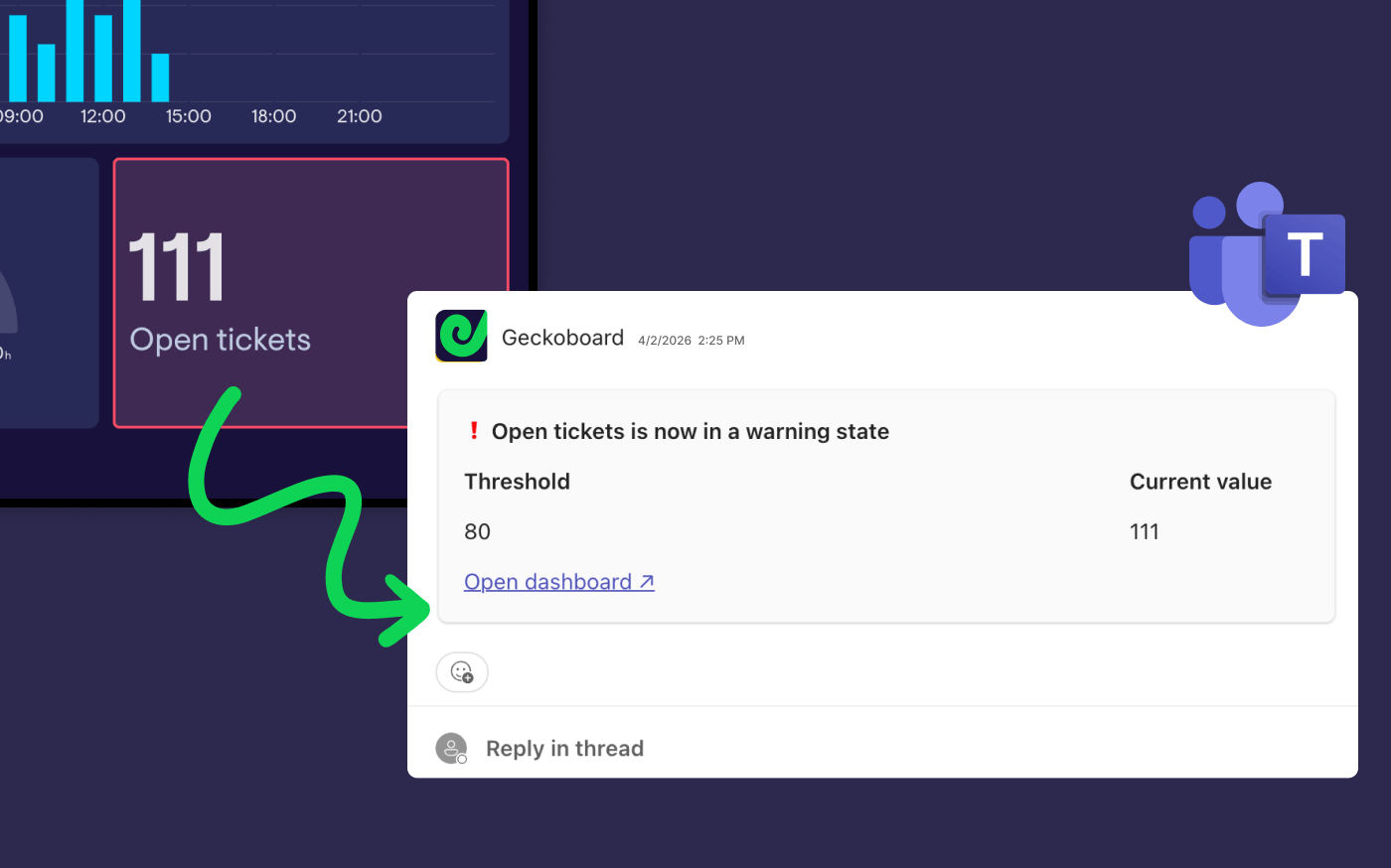
Microsoft Teams is where many support teams coordinate work. But Zendesk doesn’t always surface the signals you need there - a problem if you’re in a conversation thread and there’s suddenly a spike in tickets, a string of negative CSAT ratings or anything else that needs urgent attention.
In this guide, we’ll show how to send the right Zendesk notifications and KPI alerts into Microsoft Teams, so you and the rest of the team can react fast without turning your channels into noise.
Notifications can get messy fast
Zendesk does a good job of notifying individuals about ticket events. The trouble starts when you try to use those same notifications to run the whole customer service operation.
In practice, teams usually want two different things:
- Ticket-event notifications for agents - “A ticket was assigned to you.” “The requester replied.” and so on.
- Metric-based alerts for the team - “Unassigned tickets spiked.” “SLA risk is rising.” “First reply time is drifting up.”
If you don’t separate those, you get the worst of both worlds: lots of noise, and not enough clarity to make notifications useful.
What Zendesk can do on its own
Zendesk’s native notifications are useful for staying on top of your tickets. They’re less useful for answering team-level questions like:
- Are we about to miss SLAs?
- Is the backlog creeping up hour by hour?
- Are we carrying too many unassigned tickets right now?
- Did first reply time just jump?
You can build some of this with triggers and automations, but it tends to get brittle as workflows change. It also usually keeps those signals tied to ticket events, rather than the health of the system as a whole.
This is where KPI-based alerting tends to fit better.
A simple way to set up Teams alerts
Most teams get the best results when they treat Microsoft Teams alerts as operational signals they can act on, not a running commentary on every ticket.
The pattern is simple:
- Put a small set of Zendesk KPIs on a shared dashboard
- Define warning / success thresholds that actually mean “do something”
- Send those alerts into the Teams channel where the right people will see them
- Make it easy to go from alert → underlying tickets → action
Geckoboard offers real-time KPI alerting to Microsoft Teams when a Zendesk metric hits a threshold, so discussions can happen where agents are already working.
How to set up Zendesk alerts in Microsoft Teams
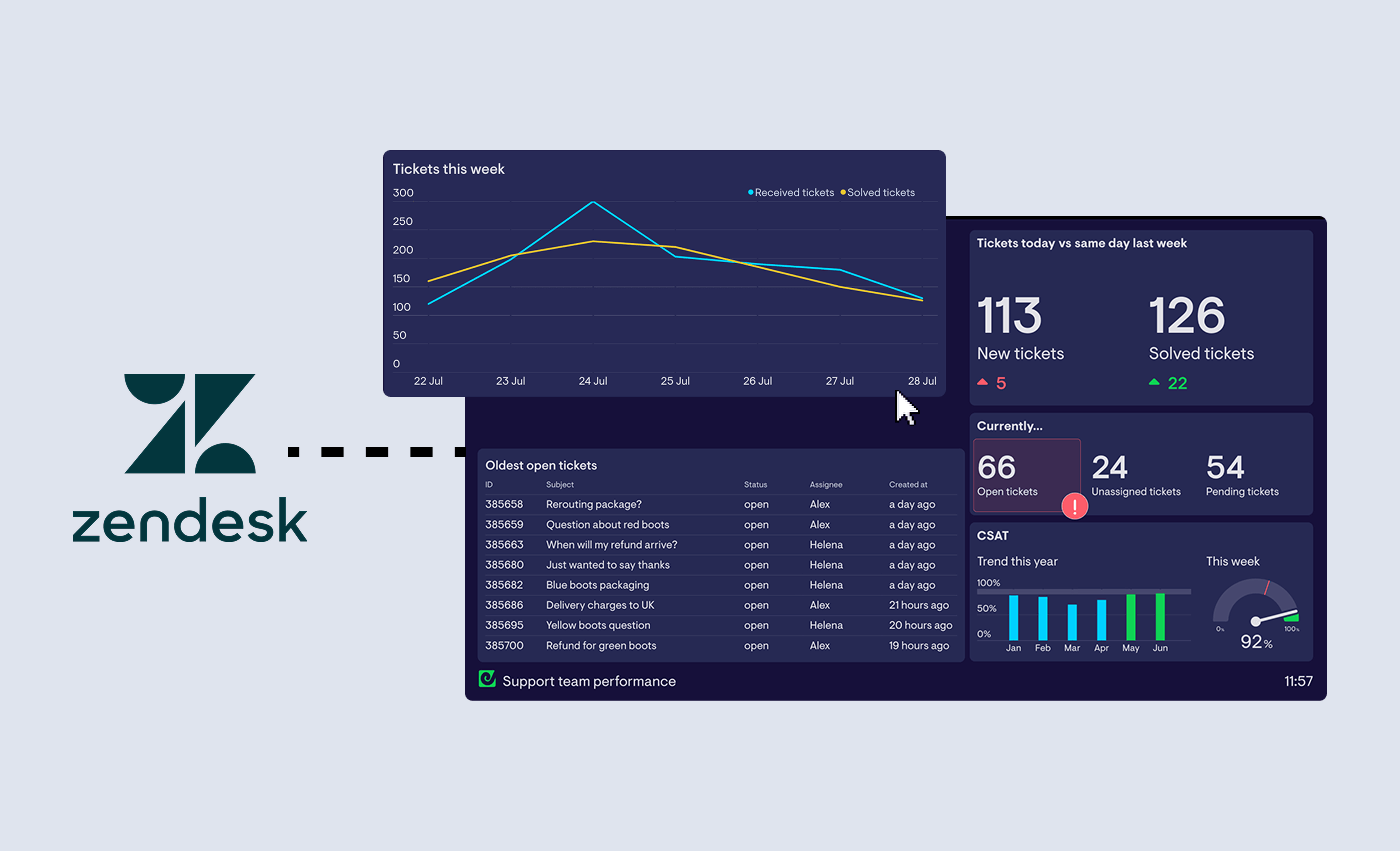
1) Connect Zendesk to Geckoboard
Connect your Zendesk account and build a dashboard with some Zendesk data you’d like to monitor throughout the day. (Learn more about Geckoboard's Zendesk integration and how operational dashboards differ from Explore.)
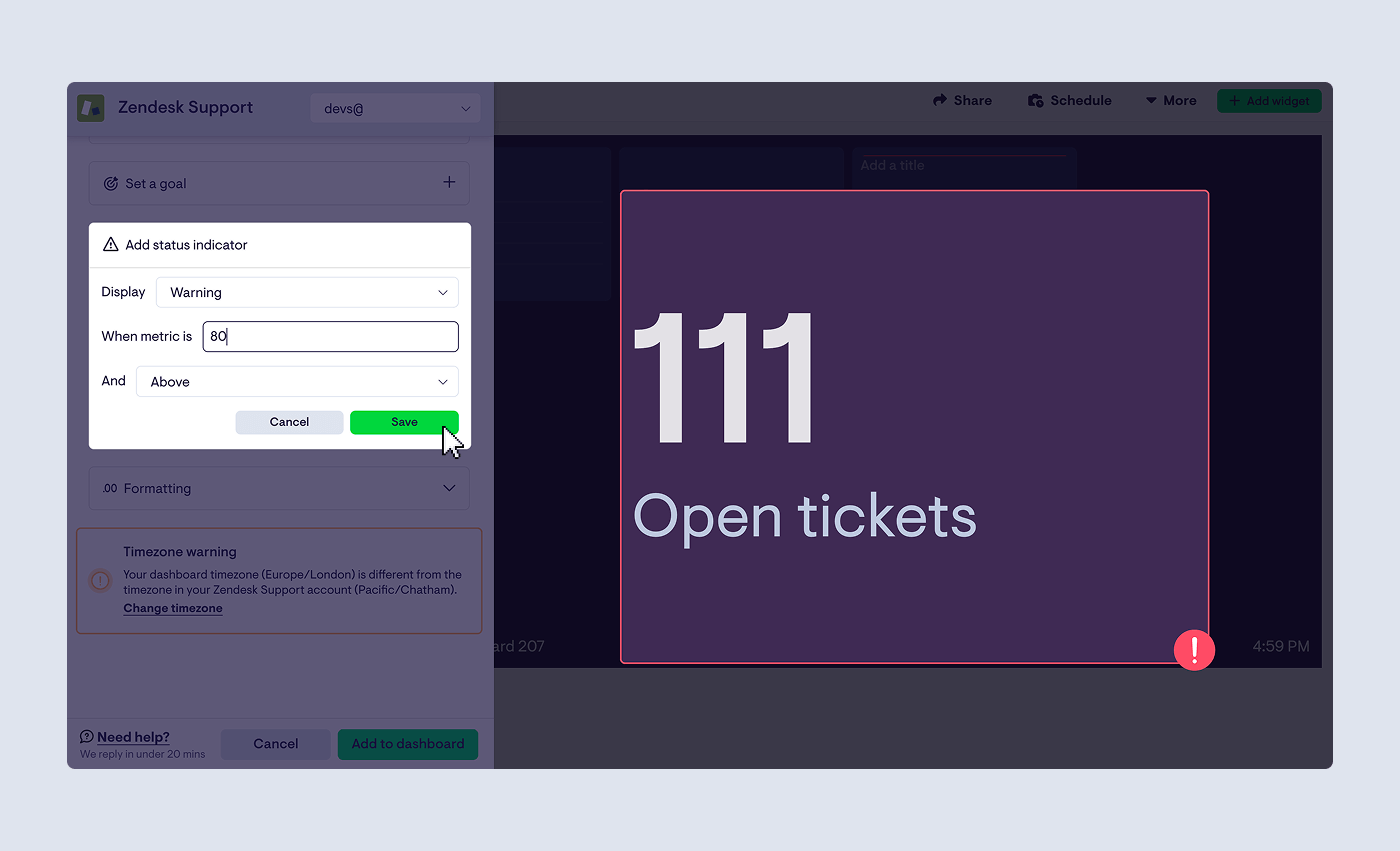
2) Add KPI notifications and choose Microsoft Teams
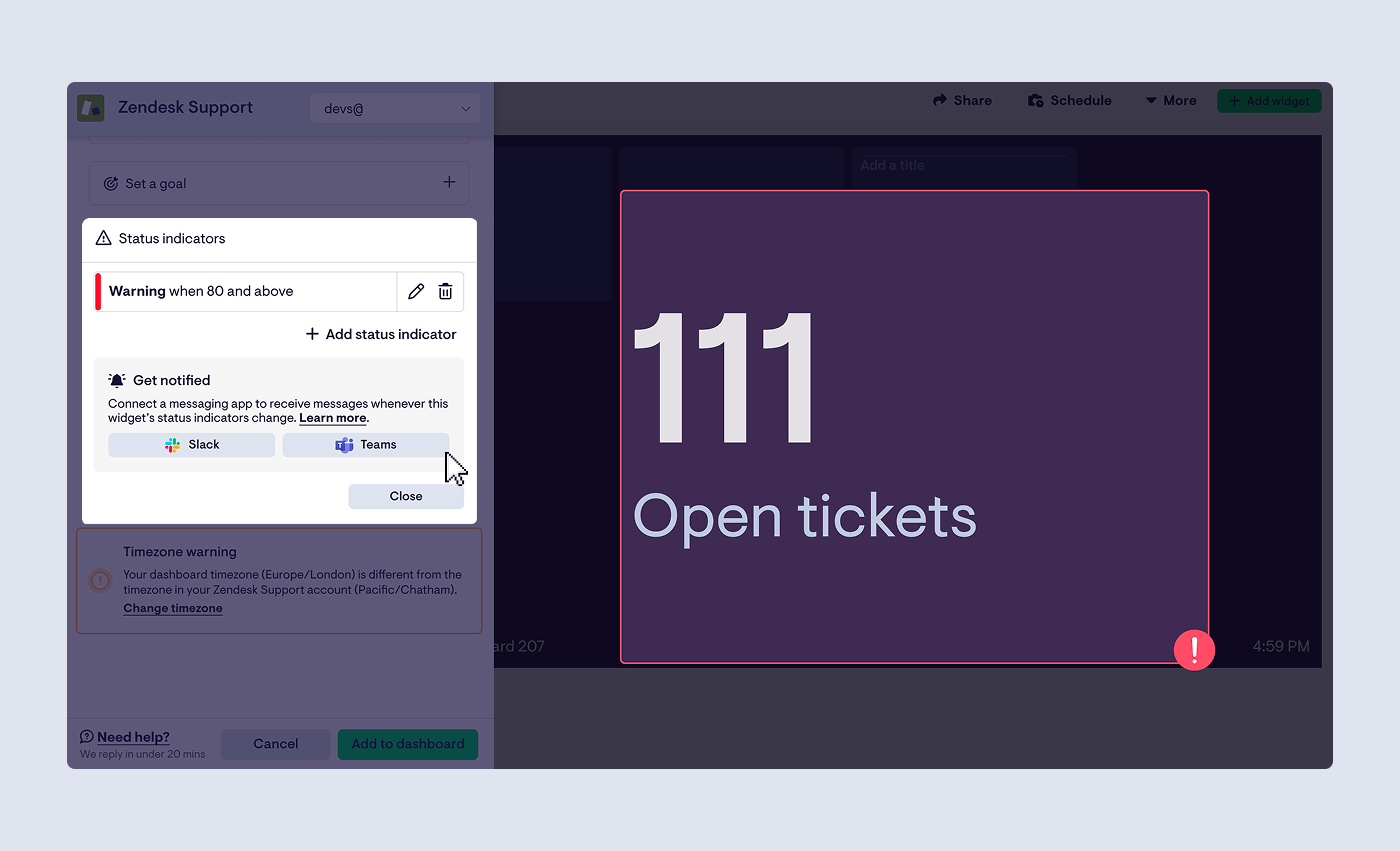
Geckoboard's KPI notifications are driven by status indicators on a widget. You set thresholds (for example: warning if unassigned tickets > 10), and Geckoboard sends an alert when the KPI enters or exits that state.
Then choose Microsoft Teams and the channel where you want that alert to land.
3) Wait for your notification to trigger
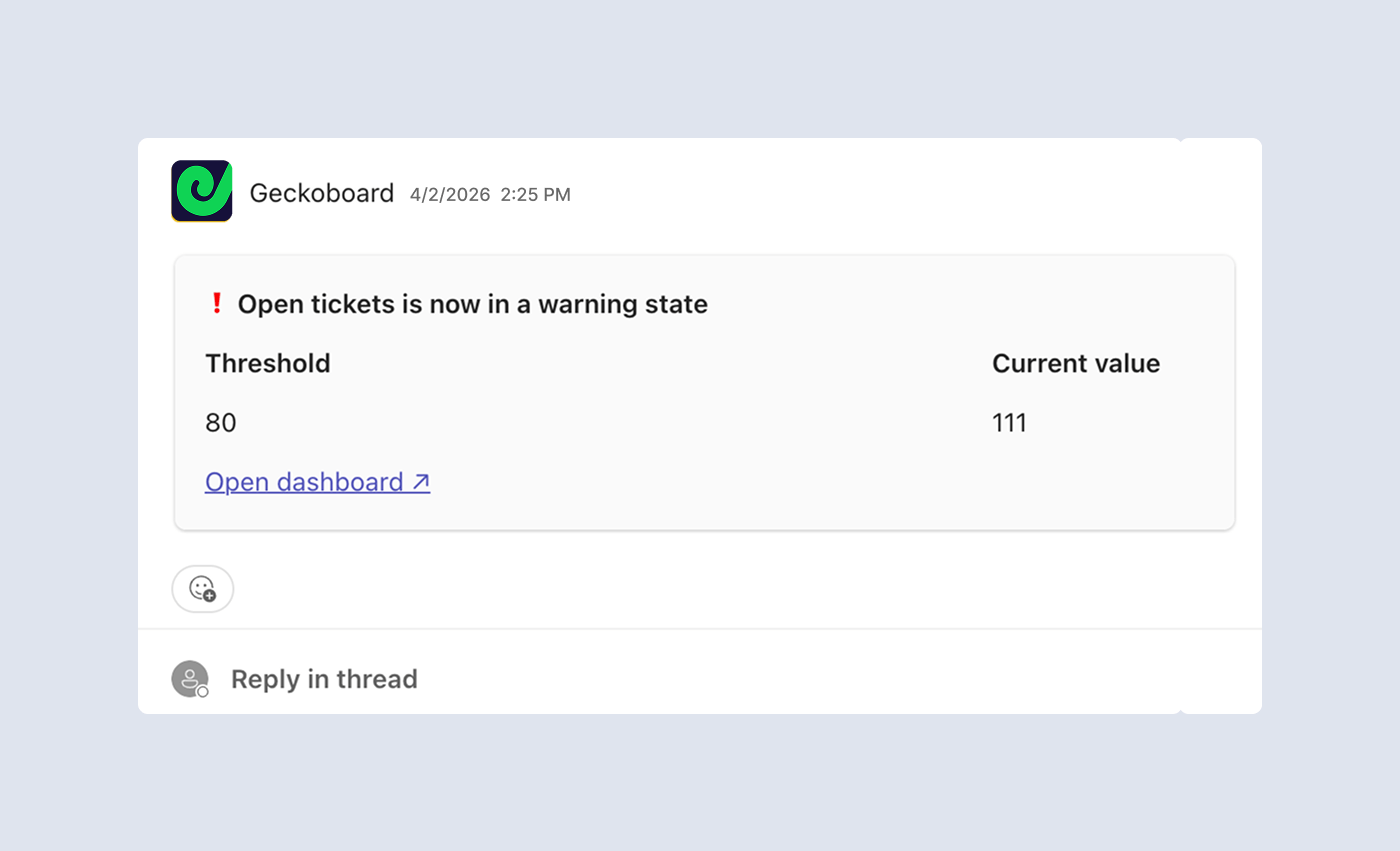
With your notification set up, all that's left is to wait for the widget in Geckoboard to update; the moment the metric hits the threshold you've set, an alert will be sent to the Teams channel you've chosen.
Which Zendesk metrics are worth alerting on
A useful alert is one where the next step is obvious. If you can’t attach a clear action to the metric, it’s usually better kept on a dashboard for regular review (rather than firing a notification).
A few examples of “obvious next steps”:
- Unassigned tickets > 10 → ask for help, reassign, pause non-urgent work
- Tickets nearing SLA breach > 15 → triage and swarm
- First reply time > 45 mins → check staffing, routing, and backlog
These don't always have to be warnings however - you can set 'success states' as well. Ideal for notifying everyone when a target had been hit - and a small celebration might be required - or a backlog has been brought down.
Below are some other Zendesk metrics that tend to translate cleanly into action. Start with a small set, tune thresholds over time, and delete alerts that don’t earn their keep.
Queue health alerts
What it tells you: The queue is building faster than you’re clearing it.
Good metrics to alert on:
- Open tickets
- Unsolved tickets
- Unassigned tickets
- Tickets by priority (e.g. P1/P2)
Example thresholds:
- Unassigned tickets > 10
- P1 open tickets > 3
- Open tickets > baseline + 25%
Typical next steps: Rebalance workload, tighten triage, pull in backup coverage, pause low-urgency work.
SLA risk alerts
What it tells you: You’re about to miss commitments (or already have).
Good metrics to alert on:
- Tickets nearing SLA breach
- Tickets breached
- SLA achievement rate
Example thresholds:
- Nearing breach > 15
- Breached tickets > 0 (for priority views)
- SLA achievement rate < 92%
Typical next steps: Triage by deadline, swarm the oldest/highest-impact tickets, escalate blockers.
Response time drift alerts
What it tells you: Customers are waiting longer than normal - often a capacity or routing issue.
Good metrics to alert on:
- First reply time
- Resolution time
- Requester wait time
Example thresholds:
- First reply time > 45 minutes
- Resolution time > target by 20%
Typical next steps: Check coverage, check backlog, check whether a specific issue type is inflating time-to-first-reply.
CSAT alerts
What it tells you: Customer experience may be slipping - but you’ll usually need context before reacting.
Good metrics to alert on:
- CSAT score (or % satisfied)
- CSAT coverage rate (response rate)
- Negative feedback trend
Example thresholds:
- CSAT < 90% (with a minimum responses rule)
- CSAT >95% (because alerts can be used to highlight wins too)
Typical next steps: Don’t debate the score - investigate the drivers. Identify which tickets are pulling CSAT down and what changed (issue type, comms, handoffs, delays).
“Back-and-forth” alerts
What it tells you: Tickets are getting stuck in long reply chains - a common source of frustration even when response-time KPIs look OK.
Good metrics to alert on:
- Tickets exceeding a reply-count threshold
- (Optionally) back-and-forths by issue type / group
Example thresholds:
- Reply count > N (set N to match what “too many” looks like for your team)
Typical next steps: Jump to the specific tickets, identify the pattern (missing macro, unclear process, product ambiguity), and fix the root cause - not just the symptom.
If you use Zendesk Voice
What it tells you: Call pressure is exceeding capacity (and missed calls are likely rising).
Good metrics to alert on:
- Missed calls
- Abandoned calls
- Average time to answer
- On-hold time
Example thresholds:
- Missed calls > 0 in the last 15 minutes
- Average time to answer > 60 seconds
Typical next steps: Pull in coverage, adjust routing, temporarily switch priorities, or add a short-term “call triage” focus.
Where should Zendesk alerts go in Teams
The channel matters as much as the alert.
Patterns that work:
- Support ops channel for queue, SLA, response time alerts
- Incident channel for spikes during outages or product issues
- Team wins channel for occasional success-state notifications
If alerts go to the wrong place, people mute channels. And once that happens, trust is hard to rebuild.
Interactive view and Source data let you see what’s behind a KPI (the specific tickets, not just the aggregate), and for Zendesk Support you can click through from Source Data directly into Zendesk to act on the exact ticket driving the change. This is where alerts stop being “FYI” and start being a practical tool for running the queue.
Learn more.
How to avoid alert fatigue
This is the boring but important work:
- Start with three to five alerts max
- Make ownership explicit
- Review thresholds monthly
- Prefer alerts for decisions and snapshots for awareness
- Delete anything the team ignores
In practice, fewer alerts that people trust beats a sophisticated system that everyone tunes out.
FAQ
What is a Zendesk Teams integration used for
Most teams use a Zendesk Teams integration to bring Zendesk signals into Microsoft Teams so the team can coordinate faster. That might be ticket updates for individuals, or KPI alerts and dashboard snapshots for team-level visibility.
Can you send Zendesk notifications to Microsoft Teams
Yes. With Geckoboard you can post KPI alerts into Microsoft Teams when a metric crosses a threshold, and schedule dashboard snapshots to share broader context at a regular cadence.
What Zendesk metrics should I monitor first
If you want the earliest signal that something is drifting, start with:
- unassigned tickets
- tickets nearing SLA breach
- first reply time
- open or unsolved backlog
Then add Voice metrics if calls are a major part of your load. See the full list of Zendesk metrics supported in the Zendesk integration FAQ.
Which Geckoboard widgets support KPI notifications
KPI notifications are supported on number and gauge widgets.
Getting started
If you want Zendesk alerts in Teams that people actually pay attention to:
- Sign up to Geckoboard and build one Zendesk dashboard for queue health, response times, and SLA risk
- Add three to five KPI alerts with clear action thresholds
- Schedule one daily snapshot into Teams for handover visibility

